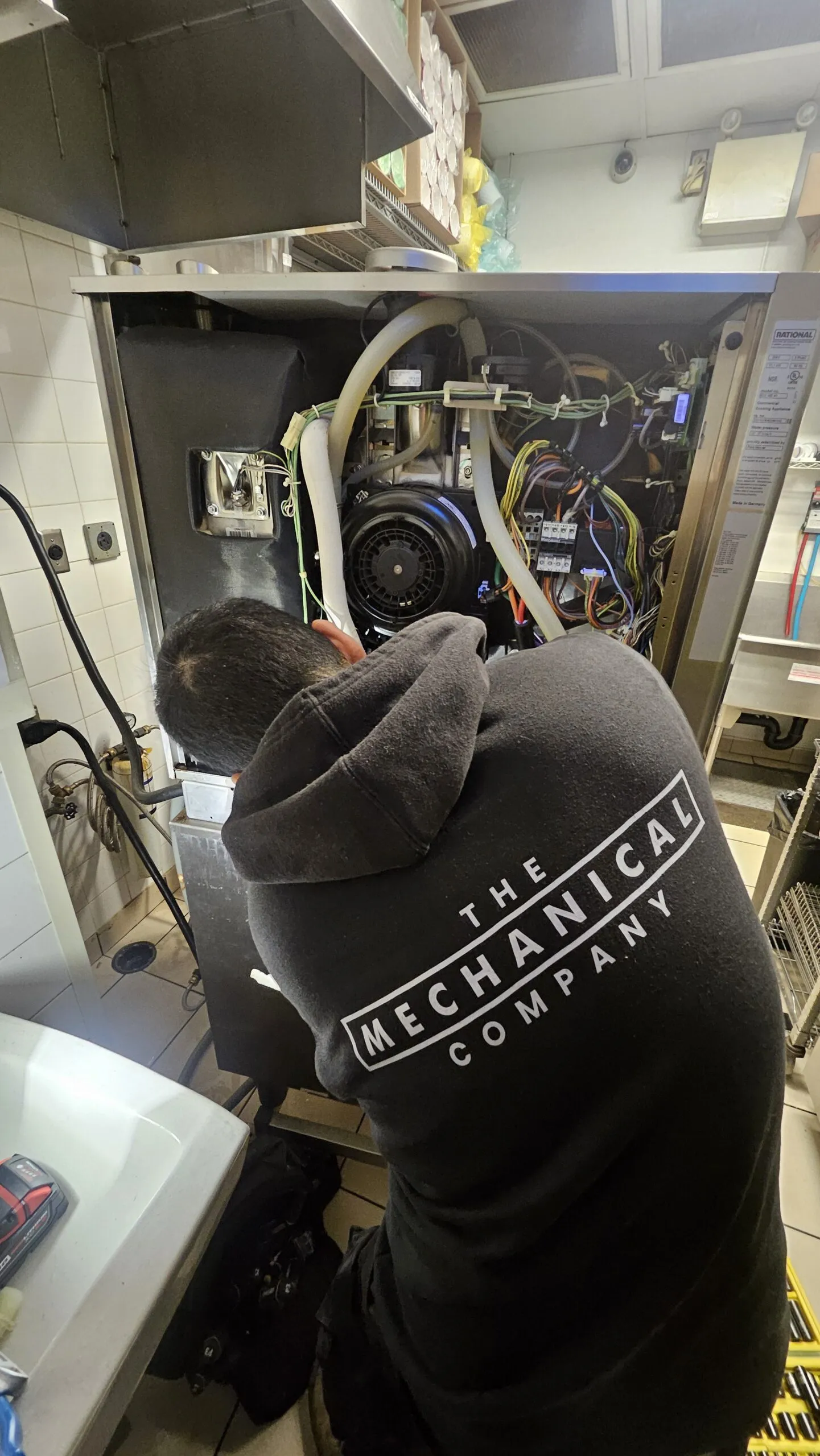
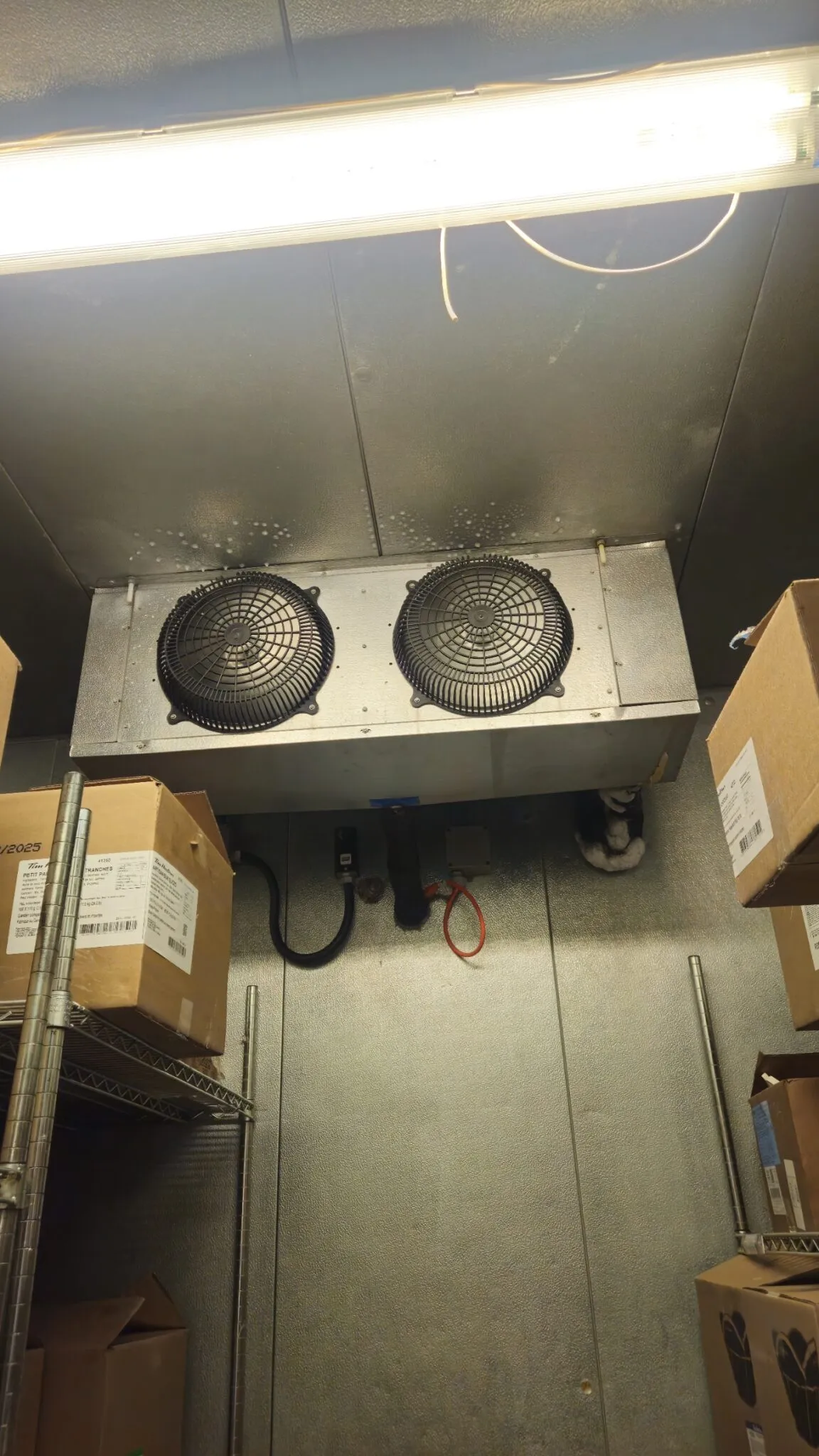
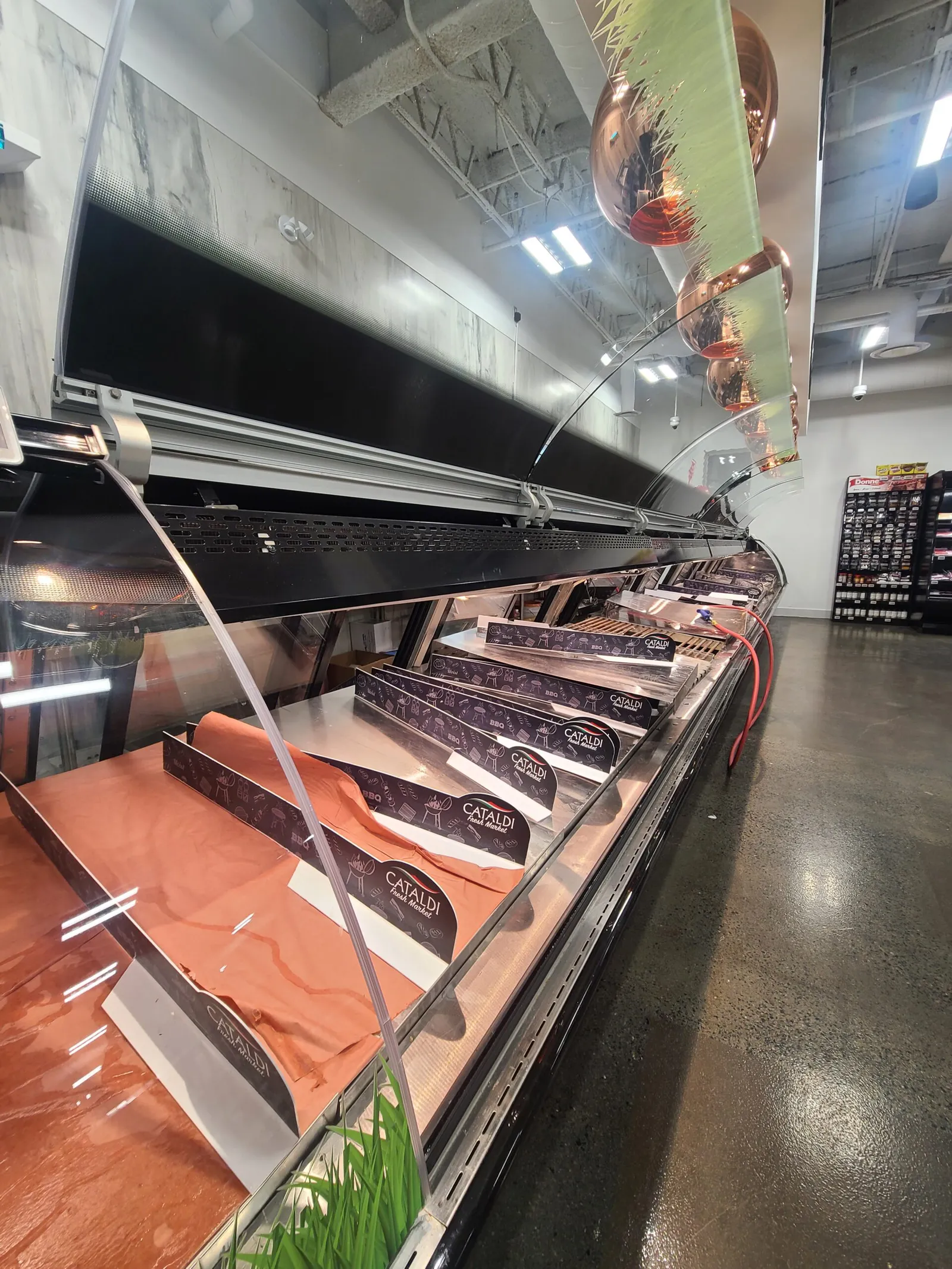
Commercial HVAC/R, refrigeration, food equipment and hydronic systems, looked after 24/7. Here's
how to reach us, how we prioritize your call, and how to use your client portal.
Walk-in freezer at our Main St store is at 15°F and rising
Thanks. Is this a high, medium or low urgency request?
High
High urgency is for 24/7 service. After-hours rates may apply. Reply YES to confirm.
YES
Main St, walk-in freezer, 15°F and rising, High. Please reply back YES before the call is
placed.
YES
The QR sticker on your equipment
THE MECHANICAL COMPANYScan for service
Walk-in freezer #2Main St storeRequest service
The request already knows the site and the unit.
Have this ready
Site name and address
The equipment and where it is
What's happening: alarms, temps, noises, leaks
How urgent it is
A site contact + cell number
Your PO#, if you use them
After hours (4 pm – 6 am Monday to Friday, all day Saturday and Sunday, and holidays): a
message tells you emergency rates apply. Press 1 to accept and you're put through.
Step 2
Pick the urgency: High, Medium, Low
The level tells us how fast to move and whether after-hours work is approved, so it also sets the
cost.
High
Business down
Your business can't operate, product is at risk, or major infrastructure is down
Within your contract response time, day or night, weekends included
Overtime: Approved. After-hours and overtime rates apply
Walk-in freezer down
No heat in a building
Refrigeration rack failure
Combi oven down at service time
Medium
Urgent, still running
Urgent, but your business can still run for now
As soon as it fits into our regular schedule
Overtime: Not approved. Regular hours and rates only
Display case warm but holding
One RTU of several down
Low
Not urgent
A nuisance, a minor issue, or something for the next visit
When we're at your site or nearby, or when the schedule allows
Overtime: Not approved. Regular hours and rates only
Noisy fan
Door gasket
Light out
Small drip
High approves after-hours work, so a repair isn't stopped halfway. After hours, we
call you first to confirm.
Medium is still urgent. Fitted in as fast as possible, regular clients first.
Low costs least. Grouped with nearby work to keep trip charges down.
How our triage works: most critical first
Requests come in…
Low
High
Medium
Low
High
Medium
…and we work them in this order
High
High
Medium
Medium
Low
Low
Every request is picked up within 30 minutes. Medium and Low never hold up a High
call, so picking the real level keeps help fast for everyone, including you. Not sure? Call us and
we'll help you choose.
Priority service for our contracted customers
We value every client. Buildings and equipment covered by a Preventive Maintenance agreement with The Mechanical Company are our top priority, and they're the ones served by the triage schedule above.
Priority lane
Under a Preventive Maintenance agreement
High
High
Medium
Low
Triaged first, most critical first. Your contract response time applies.
Standard scheduling
Not under an agreement
Request
Request
Request
Still looked after with the same care, and booked as soon as our schedule allows, but not given
priority triage.
Want priority for more of your sites or equipment? Ask us about adding them to your
Preventive Maintenance agreement: [email protected].
Your DNE
What is a DNE?
DNE = "Do Not Exceed". It's the most we can spend on a service call, in labour or materials
(whichever comes first), without asking you.
Fixed on the first visit
Your DNE
Quoted first
$0Cost of the repair →
Repair within your DNE
The technician fixes it on the first visit. Job closed, report emailed to you.
Repair over your DNE
The technician stops at the DNE, leaves the equipment safe, and we send you a quote for the
rest.
Urgent situations
When it can't wait, we don't make it wait
Heavy product loss
Your business can't operate
Major disruption to your business
In situations like these, depending on the situation and its urgency, we may bypass the DNE and
the quote step so the repair isn't held up and you're back up and running.
Usual way
Diagnose
Quote
You approve
Repair
Urgent situation
Diagnose
Repair right away
Step 3
What happens after you place a request
Your job goes straight to your facility's preferred technician and other TMC technicians nearby, so
it gets covered quickly.
A repair over your DNE waits for your approved quote
Request placedphone, text, QR or portal
Manager approvalonly if switched on
Job createdsent to your preferred tech + others nearby
Technician on sitediagnoses the fault
Within your DNE?
Urgent situations may bypass the DNE and quote, depending on the situation
yes
Job closedreport emailed to you
Invoiceview it in the portal
no
Quote sent to youwork stops at the DNE
You approveportal or email + PO#
Approved work doneon a return visit
Job closed
Manager approval is optional: staff requests wait for your manager's OK before we dispatch.
Email [email protected] to switch it on or off.
Client portal
Logging in: no password
Your cell phone number and a 4-digit code we text you. That's it.
Stay logged in on this
device90 dayssigned in on your own phone or computer
Tick Stay logged in on this device on your own phone or computer.
New here? You'll see the Welcome To The Mechanical Company! page. Enter
your name, work email, cell and job title, confirm the code, and you're linked to your company.
Email links expire after 14 days. After that, log in from the portal page. Signed up
from an old link or a new number? Email [email protected] and we'll
link you to your company.
Add a colleague: forward them one of our emails. They sign up from the link and join your
company's account.
One login per person, on your own cell, so approvals are tracked to the right person.
Client portal
Using the portal
All your current work with live updates, plus the full history at your sites. What you see depends on
your role.
Service Requests
Place a request, see urgency, status and who is assigned
Jobs
Follow each job live, with the tech's notes and photos
Quotes
Review, approve and add your PO#
Invoices
View and download invoices
Scheduled Maintenance
Upcoming visits, P.M. and Deficiency Reports
Approving a quote
1Open the quote from the email or Quotes
2Select Approve Quote
3Confirm you're authorized
4Enter your PO# (it replaces any PO# on the job)
Or just reply to the quote email with your approval and PO#. We schedule the work once it's approved.
Job reports
Emailed when the job closes, with a PDF. Photos are in the email link, not the PDF.
Maintenance reports
Scheduled Maintenance → your site → the visit → download the P.M. and Deficiency Report. Click a deficiency for photos.
Your notifications
On your phone: menu (☰, top left) → pencil icon by your name to update your details.